How-to guide
How to make a vCard QR code (free)
A vCard QR code holds your contact details — name, phone, email, company — so a single scan offers to save you to someone's phone. This guide makes one for free in a couple of minutes.
When to use it
Use a vCard QR code wherever you hand out contact info: business cards, conference badges, trade-show banners, email signatures. It's a static code — your details are encoded in it — so it works forever, for free, with no account.
Step by step: make your vCard QR code
- 01
Open the free vCard QR code generator
Open the KeptQR vCard generator below — it runs entirely in your browser, so your contact details never touch our servers.
Open the vCard generator → - 02
Fill in your contact details
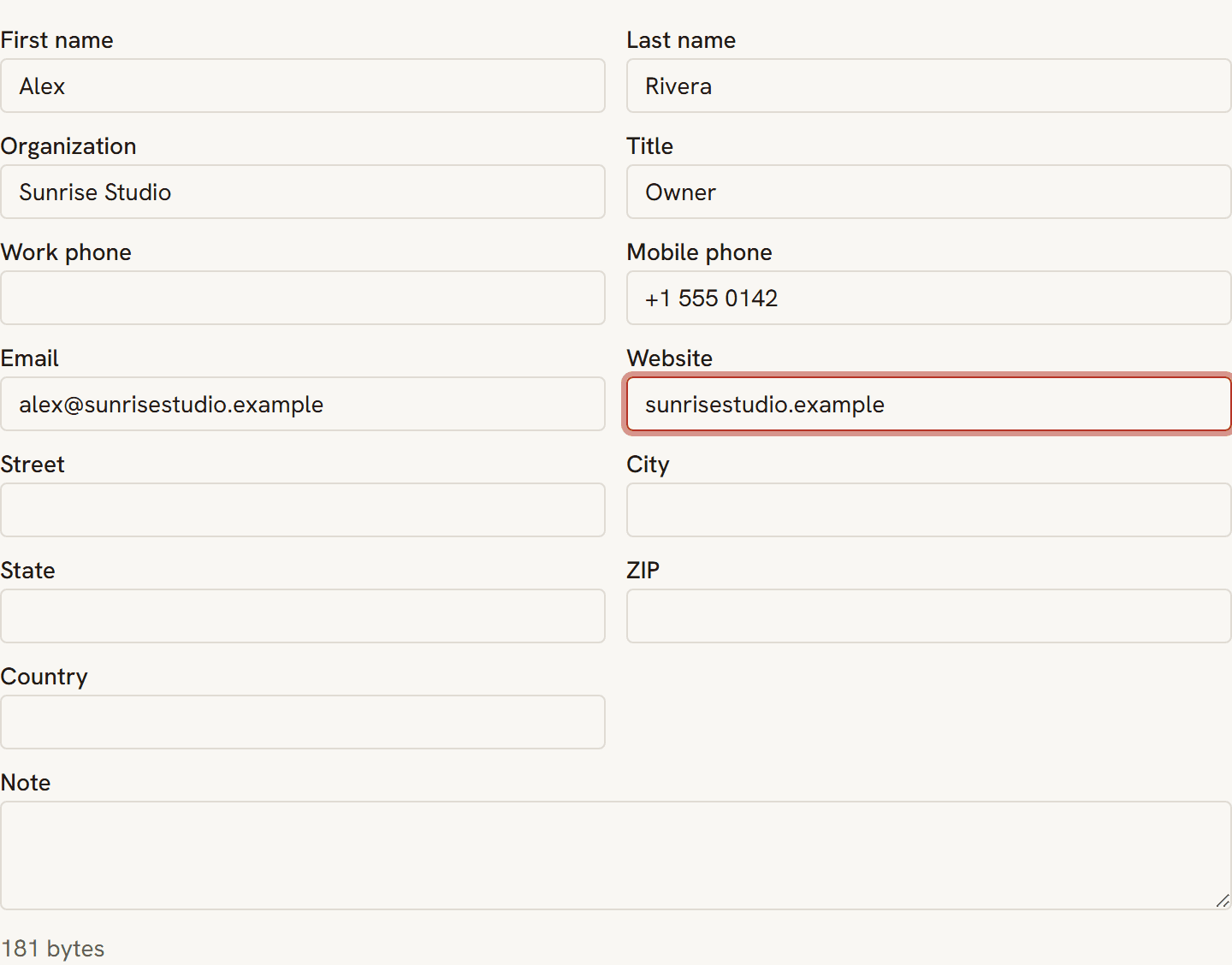
Add your name, organization, title, phone, email, and website. A first or last name is the only requirement; the more you add, the more lands in someone's contacts when they scan.
- 03
Check the preview
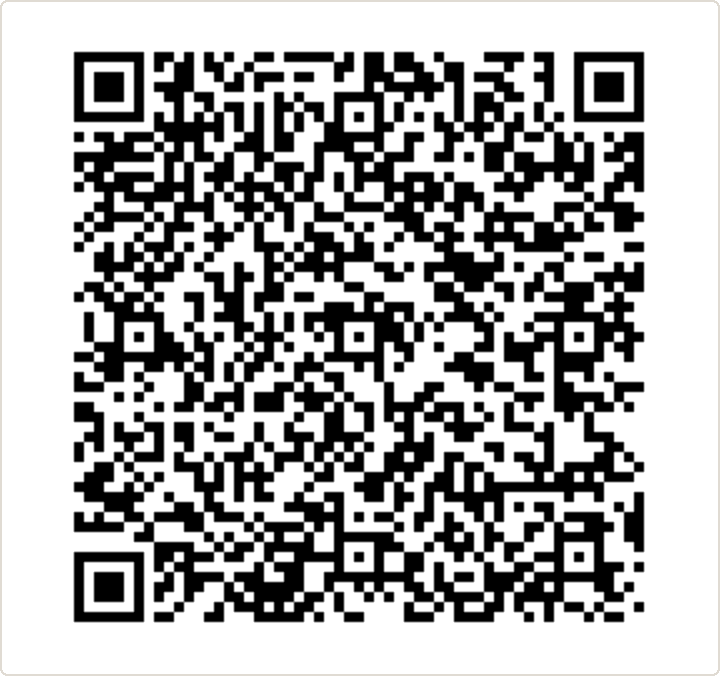
Your code previews as you type. Watch the byte count — the more detail you encode, the denser the code gets, so trim anything you don't need for a code that scans easily at small sizes.
- 04
Customize the look (optional)
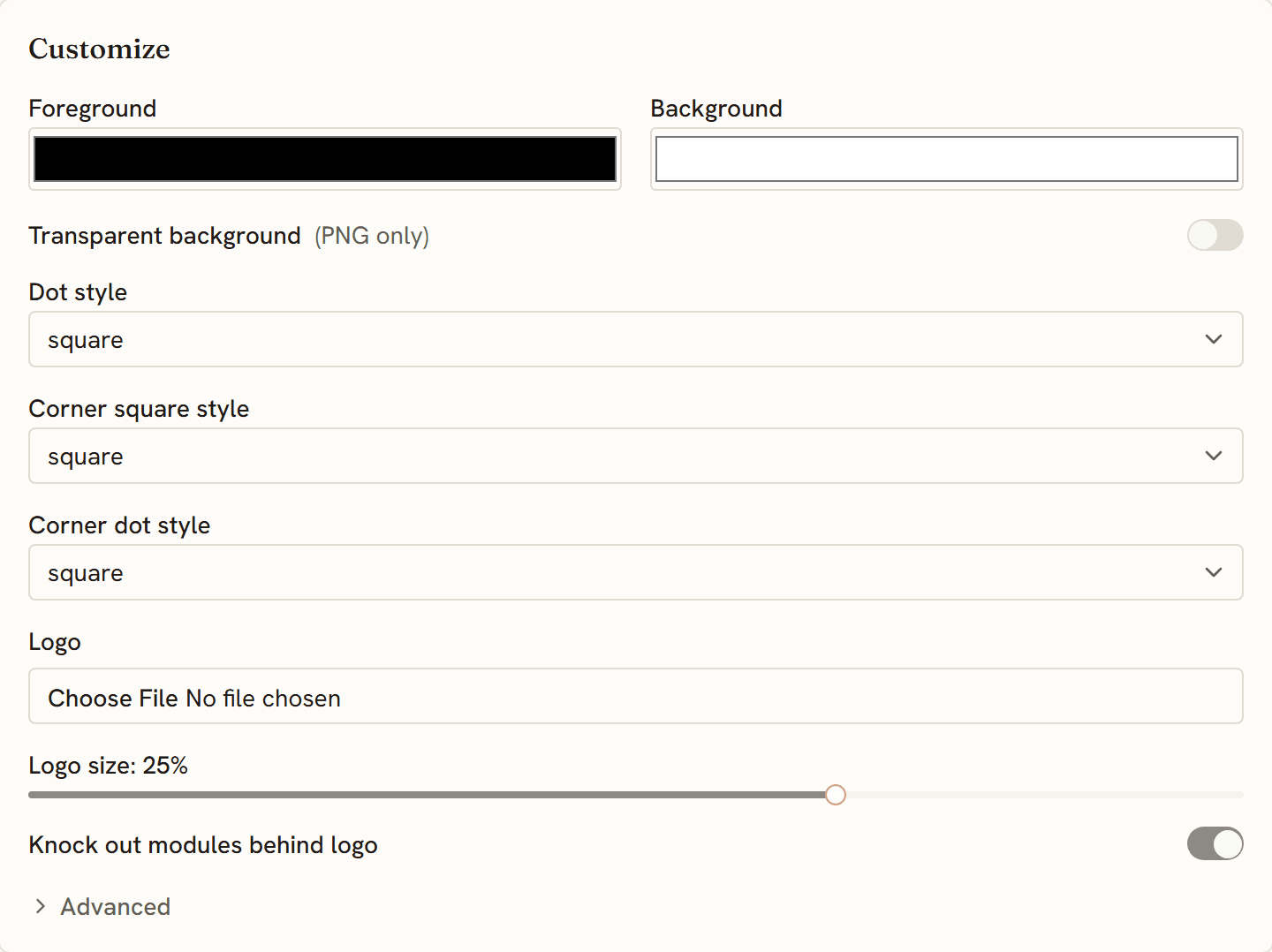
Set your colors and add a logo. It's free, and the generator keeps the code scannable when you add one.
- 05
Download a PNG or SVG
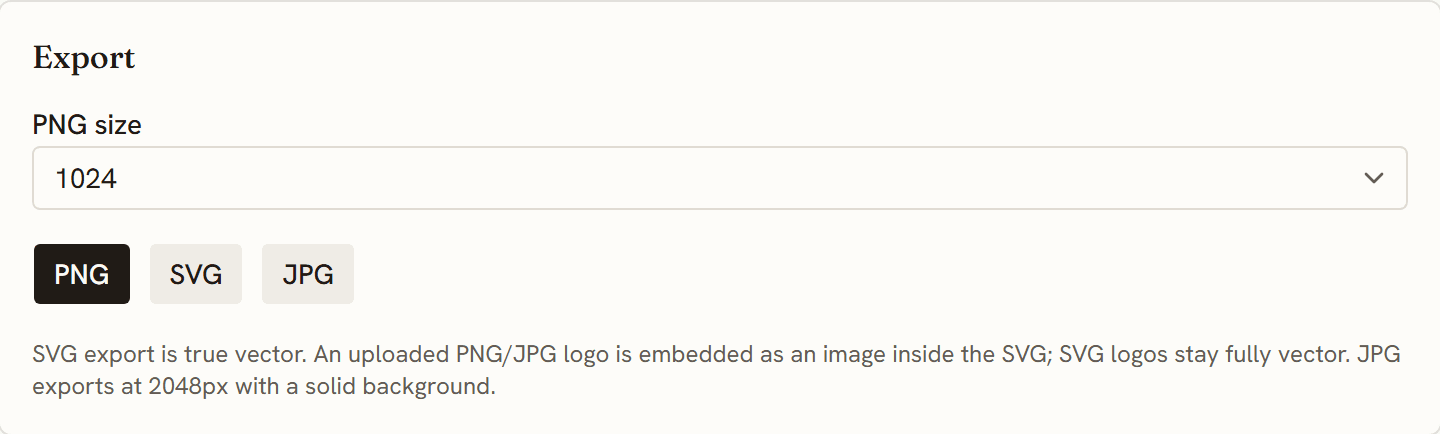
Use SVG for print — business cards and badges stay sharp at any size; PNG is fine for screens.
- 06
Test that it saves correctly
Scan your own code and confirm the contact card opens with everything spelled right before you order a batch of cards.
Ready to make one? The generator is free, and the code is built in your browser.
Make your vCard QR code →Questions
What is a vCard QR code?
It encodes your contact details in the vCard format. When someone scans it, their phone offers to add you to their contacts — no typing.
Does a vCard QR code expire?
No. Your details are encoded in the code itself, so it works forever — free, with no account. If your details change, just make a new one.
Does it work on iPhone and Android?
Yes. Both recognize the vCard format and offer to save the contact straight from the camera.
Why is my code so dense?
vCards can hold a lot of text, and more text means a busier code. Keep to the essentials — name, one phone, email, website — for a code that scans reliably on a small business card.