How-to guide
How to make a Wi-Fi QR code (free, step by step)
A Wi-Fi QR code puts your network name and password into a pattern people can scan to join — no reading a password off a chalkboard, no typos. This guide walks through making one for free in a couple of minutes, and the one thing most people skip that causes codes not to connect.
When to use it
Reach for a Wi-Fi QR code anywhere guests need your network and you'd rather not recite the password: cafés and restaurants, Airbnbs and rentals, office lobbies, and event venues. It's a static code — the network details live in the code itself — so it works forever, for free, with no account.
Step by step: make your Wi-Fi QR code
- 01
Open the free Wi-Fi QR code generator
Open the KeptQR Wi-Fi generator below — it runs entirely in your browser, so your network name and password never leave your device or touch our servers.
Open the Wi-Fi generator → - 02
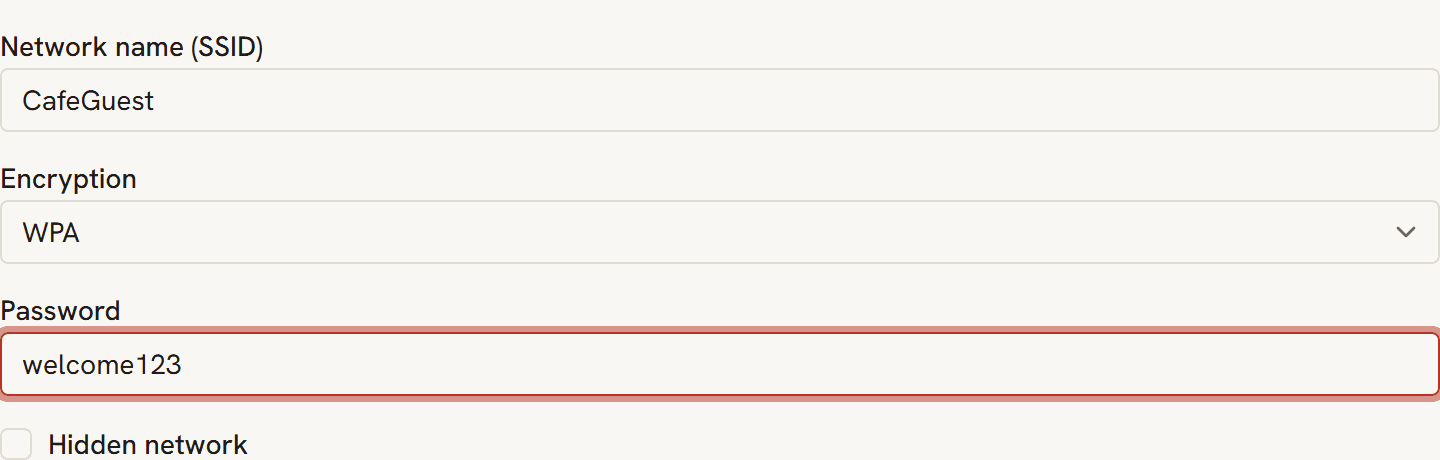
Enter your network name (SSID) exactly
Type the network name exactly as it appears on your router or in your phone's Wi-Fi list — it's case-sensitive, and a single wrong capital letter is the most common reason a Wi-Fi QR code won't connect.
- 03
Choose the security type and enter the password
Pick your encryption — WPA/WPA2 covers almost every modern network — and enter the password. Only choose the no-password option if the network is genuinely open. Your code previews instantly as you type.

- 04
Mark it hidden only if your network doesn't broadcast
If your network is hidden (it doesn't appear in the normal Wi-Fi list), turn on the hidden-network option so phones know to look for it. Most networks aren't hidden — skip this if yours shows up normally.
- 05
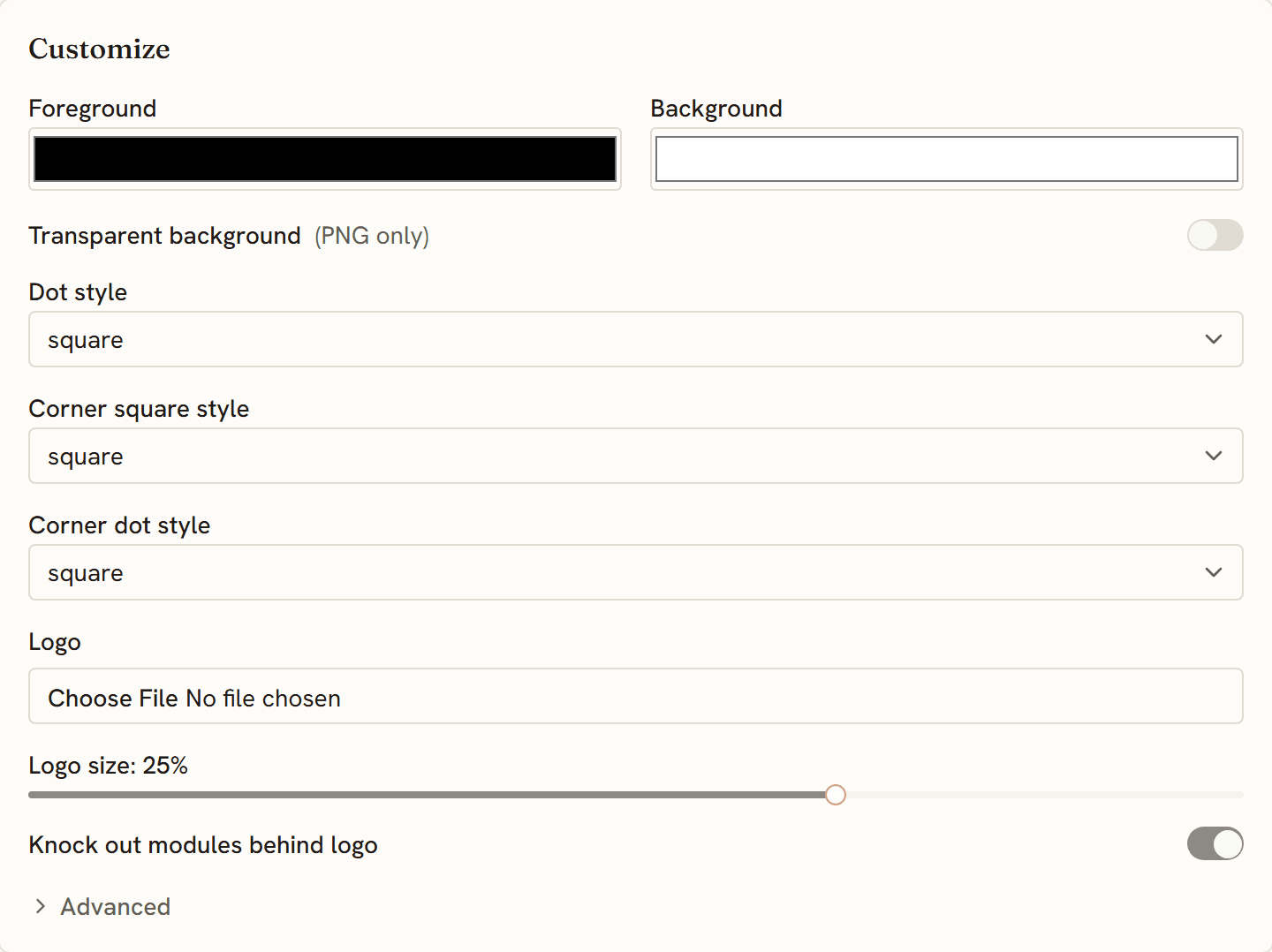
Add your logo and colors (optional)
Drop a logo into the center and set your colors. It's free, and the generator raises the error-correction level automatically so the code still scans reliably with a logo on top.
- 06
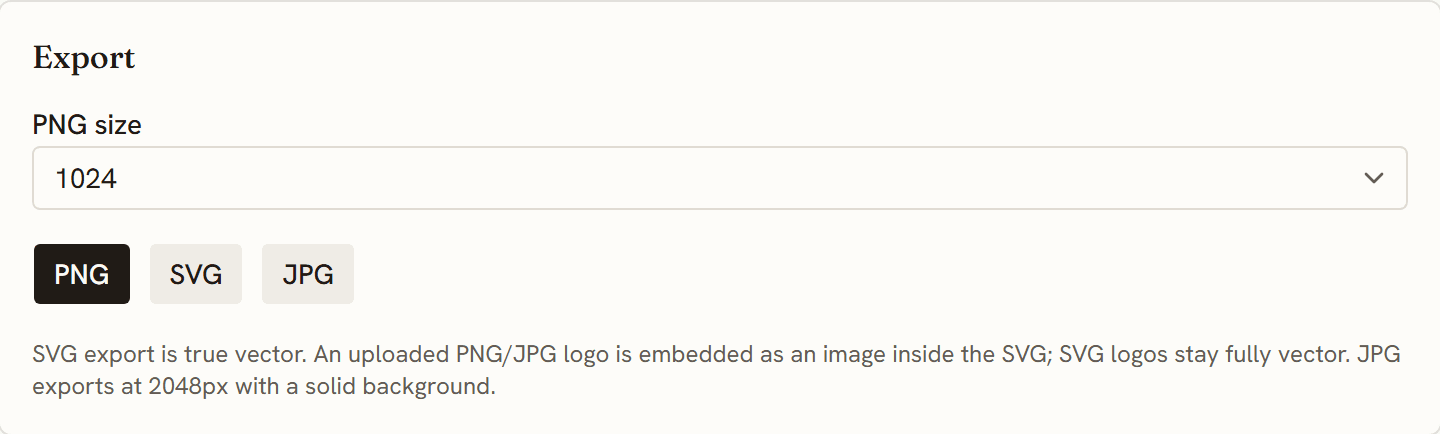
Download a PNG or SVG
Download a PNG for screens and quick prints, or an SVG for signage and anything you'll scale up — an SVG stays crisp at any size, from a table tent to a window decal.
- 07
Test it before you print a hundred
Scan your own code with a phone or two — ideally one iPhone and one Android — and confirm they actually join the network. Testing first is how you avoid reprinting a stack of table tents over a typo.
Ready to make one? The generator is free, and the code is built in your browser.
Make your Wi-Fi QR code →Questions
Does a Wi-Fi QR code expire?
No. A Wi-Fi QR code is static — your network name and password are encoded directly in the code, so it keeps working for free with no account and no subscription. If you change your Wi-Fi password, generate a new code.
Is it safe to put my Wi-Fi password in a QR code?
The code is generated in your browser, so the password is never sent to our servers. But anyone who scans the code can join the network — that's the point — so place it where you'd already be comfortable sharing the password, like a guest area, not somewhere public online.
Does it work on iPhone and Android?
Yes. Both read Wi-Fi QR codes natively from the camera and offer to join the network — no separate scanner app needed.
What if I change my Wi-Fi password later?
The old code stops connecting because it still carries the old password. Just make a new code with the new password and swap out the printout.